Showing posts with label fix ipad system to normal. Show all posts

2017/07/13

Fix iPhone/iPad That Won't Turn On after iOS 11 Update


Many users will upgrade their device to iOS 11, but some users reflect the situation that their iPhone or iPad can't turn on after the upgrade to iOS 11.

Don't worry, maybe it's not that bad. First of all, you can determine whether your iPhone or iPad can't turn on because the battery has been used up. If this is the case that we can't turn on, please connect your iPhone or iPad to the power supply. If you see the sign on the screen and the battery is low, the battery is out of power. Then you can try to turn on after the device has been charged for a while. It seems that your device has consumed all of its power just because it upgrades the system.

If you are sure your current phone battery is full, but it doesn't work properly, there may be a problem with your iOS system. So how do we fix iPhone or iPad under the circumstance?


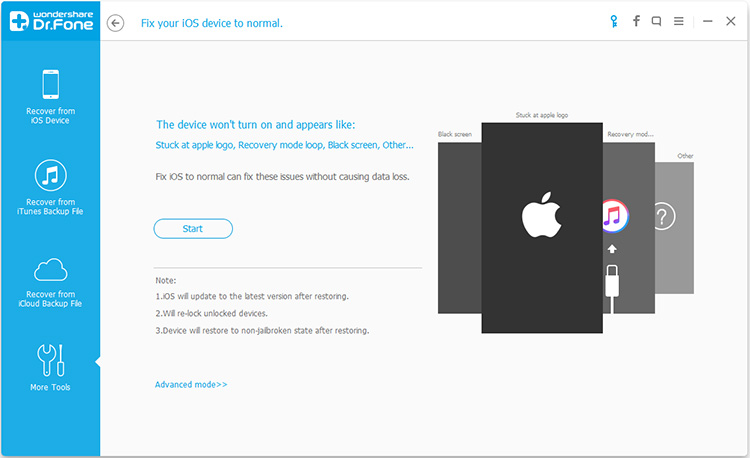
At this point, you can use dr.fone toolkit - iOS System Recovery to fix your iPhone or iPad. As the name suggests, this is a professional iOS system repair software, you can use it to repair a variety of scenes due to iOS system failures, such as won’t turn on, recovery mode, white Apple logo, black screen, looping on start, etc. What's more, it can not only successfully repair your iOS device, but it also preserves the integrity of device data. In other words, it will not delete any data in the device. In addition, it is compatible with the latest iOS systems and iOS devices, and it supports almost all iOS devices, including iPhone, iPad, and iPod touch.

Note: after using this function, your iPhone/iPad will be updated to the latest iOS version. And if your iPhone/iPad has been jailbroken, then it will be updated to non-jailbroken version. If you have unlocked your iPhone/iPad before, then it will be re-locked again.




Step 1. Run the dr.fone toolkit and Connect iPhone/iPad to computer

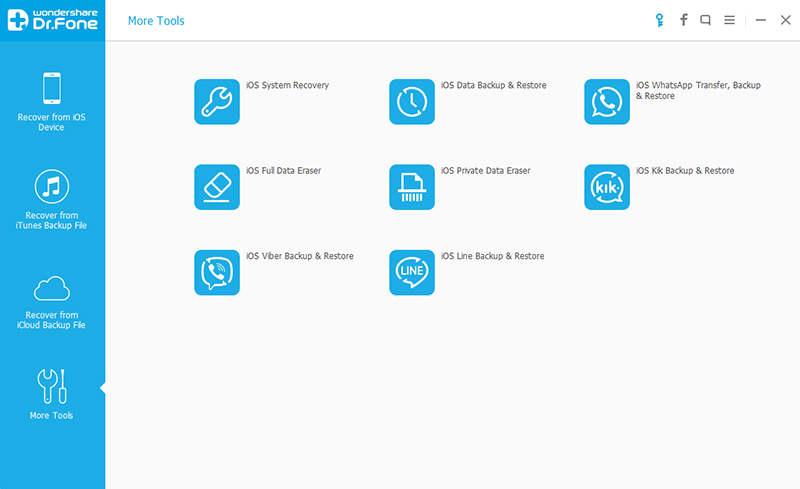
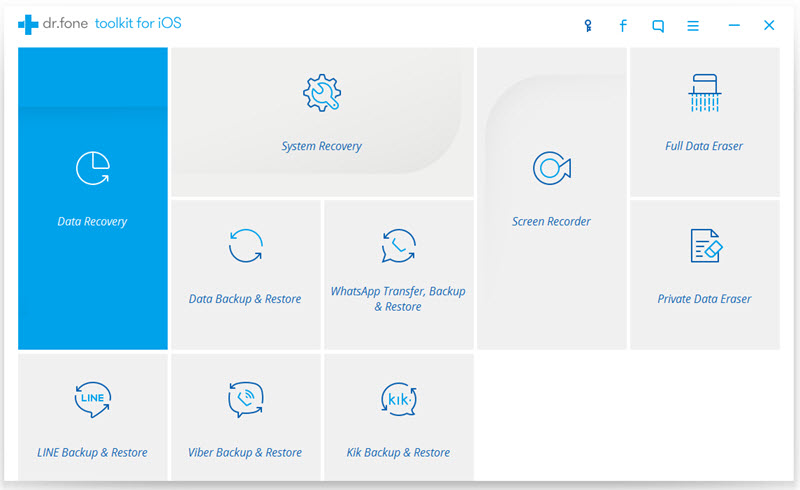
First of all, please download the dr.fone toolkit and run it on your computer. Then, choose System Recovery from the main window.

Next, use an USB cable to connect iPhone/iPad to computer. At this point, the program will recognize your iPhone/iPad and you need click "Start" when device identification is successful.


Step 2.
Boot your iPhone/iPad in DFU mode

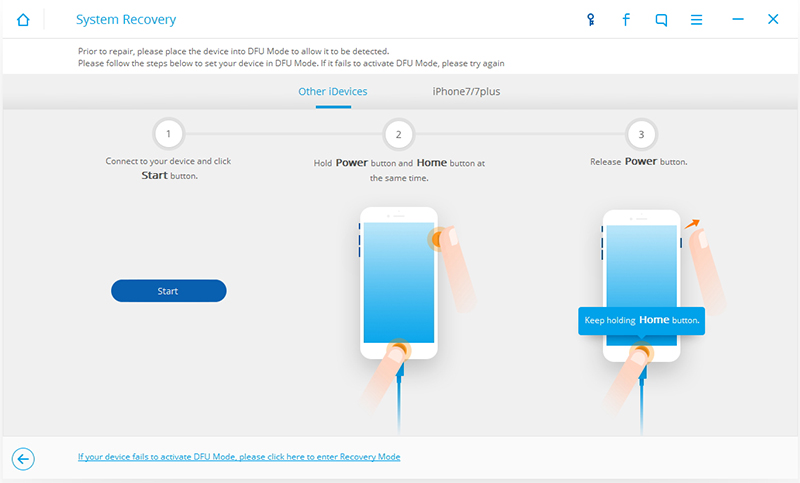
Now, you see the instructions as shown in the figure below. You need to manually operate your iPhone/iPad so that they can go into DFU mode.

The concrete steps are as follows:

Please hold the Home button and Power button for about 10 seconds, then release the Power button and still hold the Home button.

After the iPhone/iPad is in DFU mode, program will automatically detect it. Then you can release the Home button.


Step 3. Select and download the firmware

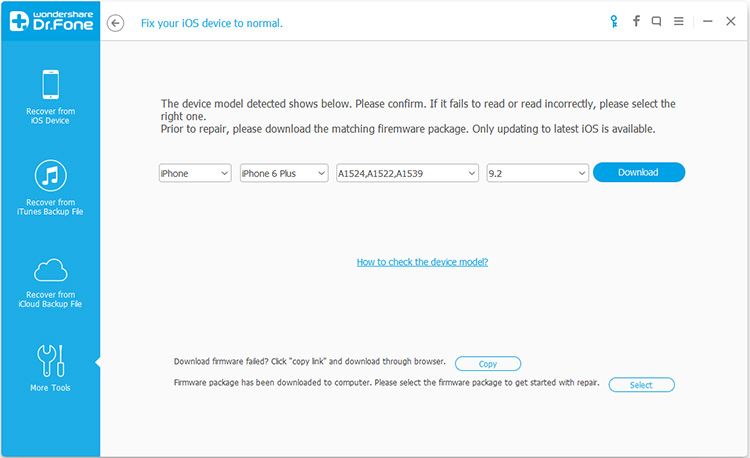
When you are in the DFU mode state, you will enter a new window. You need to choose the right firmware to download. So you need to select the correct device model and firmware information. After confirmation, click "Download".
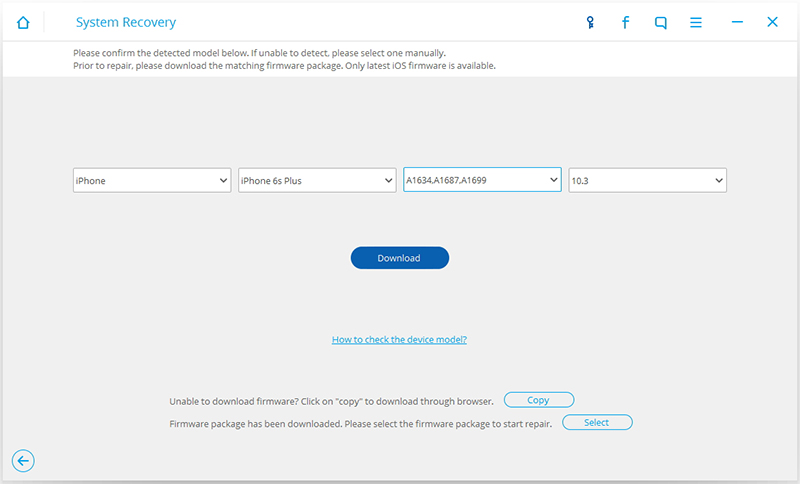


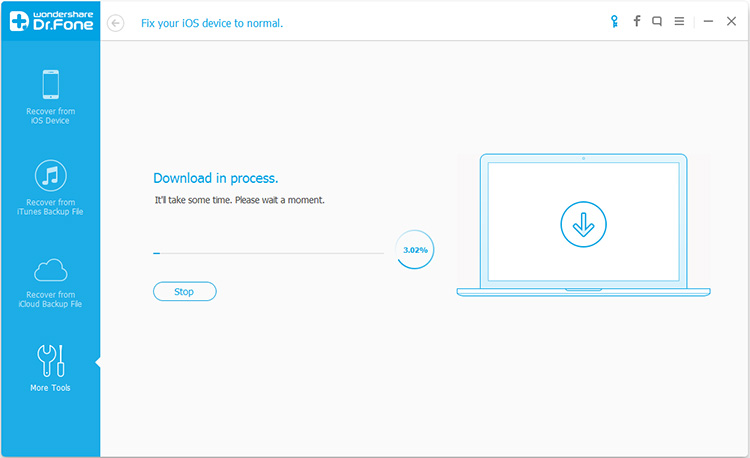
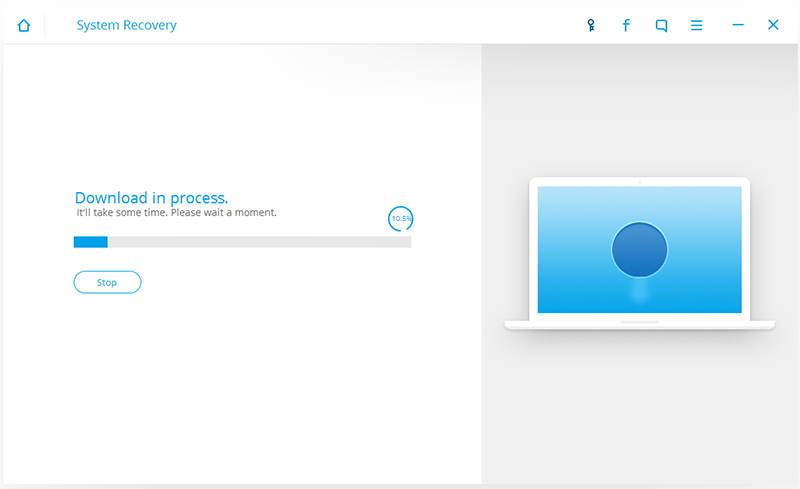
When firmware starts downloading, please be patient because firmware is large. Also, please keep your device in a stable network state.


Step 4.
Fix iPhone/iPad to normal status

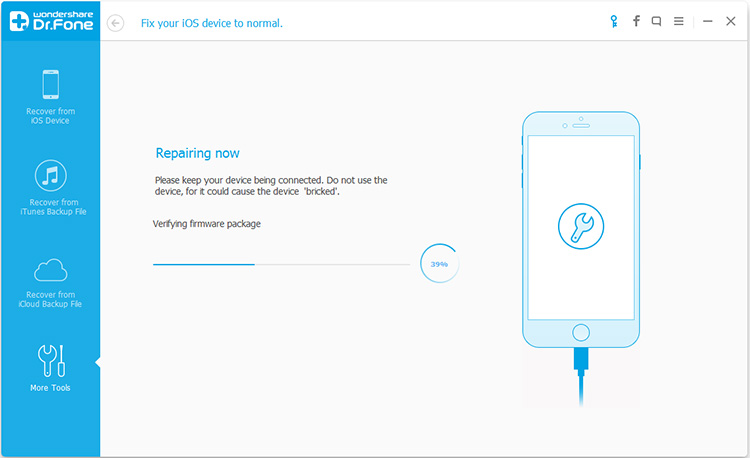
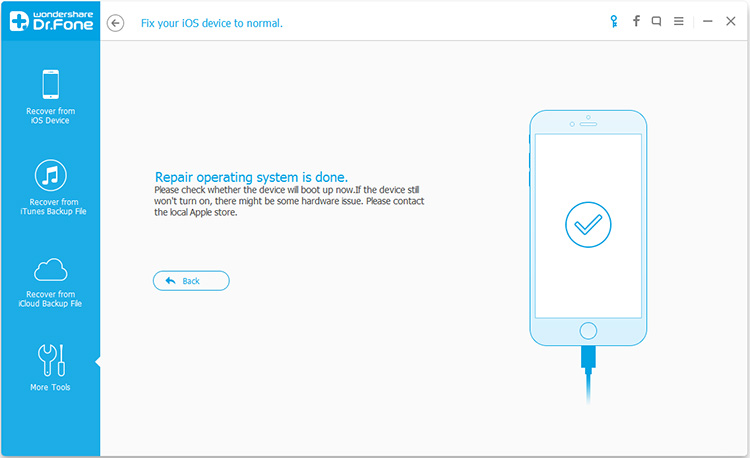
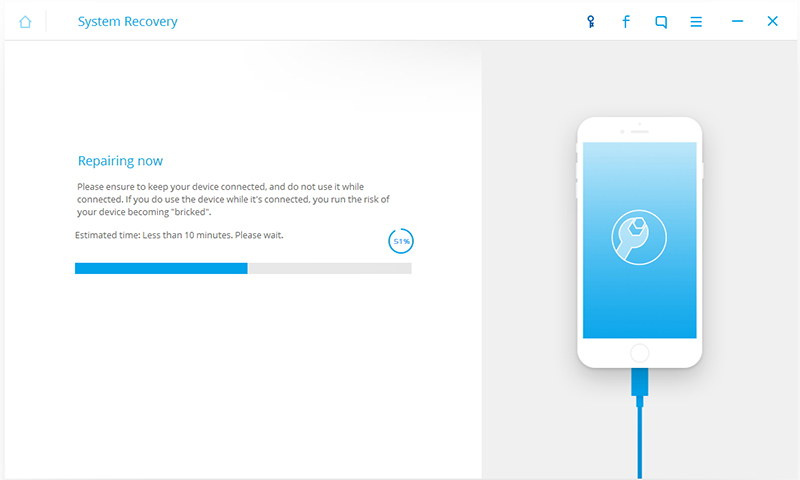
When the firmware download is complete, the program begins to automatically fix your iPhone/iPad. And your device will work again. When this repair process is complete, the iPhone/iPad will go into normal mode. If it does not boot normally, you can click on Try Again to try the process again.


More info:

Repair iOS System Issues, Fix iOS System to Normal on iPhone

2017/05/31

How to Fix iOS System to Normal for iPad

iOS products are popular all these years because people like its design and its advanced functions. Especially today, our phone becomes a mini assistant in our work and study. It plays an important role, so we often choose the advanced device. iOS product is good choice, but nothing can be perfect, not alone the advanced device. Some feedback of some iOS customers reflects that sometimes the system collapses when they install a new kind of application or do something else. One of my friends met similar situation when he used his iPad normally. System collapse will cause white screen, black screen and so on, which cannot be ignored.


When you encounter this issue, don‘t worry. Dr. Fone can help you as a supporter. It offers users practical and useful function to fix the system and data problems of their iPhone. It is famous for its efficiency and effectiveness. My friend solved the problem of his iPad with it and he really like Dr. Fone for its concise design and functional performance. In fact, besides my friend’s comment, Dr. Fone gain a good reputation from its users. It fits most iOS system and work sincerely for customer without causing any loss of their iPhone or iPad.


Now, you are shown the steps of how to fix iOS system to normal for iPad.

Step 1. Connect Your Device to the Computer

Open Dr. Fone on the computer for preparation. Then,connect your iPad to the computer with USB cable.


After entering System Recovery, please click "Start" button and the recovery starts.

Step 2. Set Your iPad into DFU mode

Please set your iPad into DFU mode, so that Dr. Fone can detect your iPad and recognize its model.

If you have no idea of DFU mode. Please follow the instruction and images below. It is easy to follow. If fails at the first time, please try agian and make sure your iPad has been into DFU mode.


Step 3.Confirm the Model and Download the Package

Here, please confirm the information of your iPad. If the information unmatch, please correct it manually.


Before fixing, you need to prepare the matching firmware package. If the package has download, just select the matching firmware. If not, please click "Download" button to download the matching firmware package.
The download will take some time, please wait a moment.


Step 4. Fix iOS to Normal status

Once the the package is downloaded, the repairing begins. The repairing may take at least 10 minutes. Please wait in a moment.


After reparing, the problem is fixed and your iPad become normal again.If your iPad is unable to boot, please restart it or try the recovery one more time.


Note: Make your iPhone connected all along the line and don't use your iPad during the recovery.

More info:

Fix iOS System to Normal on iPhone
Repair iPhone System to Normal after Failed to Jailbreak


2017/05/21

How to Fix iPad that Won't Turn ON

Help, is your iPad normal after upgrading the system? Today, my iPad pops up a dialog box and prompt me to upgrade the system. So I followed the prompts to upgrade the system. However, I don't know which link is wrong. After upgrading the system, my iPad can't be turned on. How can I fix this iPad?


Dr.fone toolkit - iOS System Recovery can fix various iOS system problems, for example, recovery mode, white Apple logo, black screen, looping on start, etc. When your iPad won't turn on, you can also use it to fix your iPad. The software is compatible with a variety of iOS devices, including iPhone, iPad, iPod Touch, etc.. What's more, the software is safe; the program does not delete any data in the device. The software uses an intuitive interface, you can quickly find what you need and use simple steps to fix the iPad.


Note: after using this function, your iPad will be updated to the latest iOS version. And if your iPad has been jailbroken, then it will be updated to non-jailbroken version. If you have unlocked your iPad before, then it will be re-locked again.

Step 1. Connect your iPad to your computer

Please download and install dr.fone toolkit on your computer. After running it, select "System Recovery" from all the tools.


Then, use a USB line to connect your iPad to the computer. When the program detects your iPad, click "Start".


Step 2. Boot your iPad in DFU mode

To fix your iPad, you need to follow the instructions to get your iPad into the DFU mode. So you need to hold down the Home button and the Power button for about 10 seconds, then loosen the power button and continue holding down the Home button.

When your iPad goes into DFU mode, your iPad will be detected by the program,, and you can loosen the Home button.


Step 3
. Select and download the firmware

To guarantee a successful system recovery, you need to select the correct model and firmware information for your iPad, and then click "Download".


It takes some time to download firmware, please wait patiently. Also, please do not disconnect the iPad from the computer and make sure your network is stable.


Step 4. Fix iPad to normal status

When the download is complete, the program will begin to fix your iPad directly and make your iPad work normally. When the repair process is complete, your iPad can be turned on properly. If it does not boot normally, you can click on Try Again to try the process again.


More info:

How to Recover/Fix iPhone That Stuck in Reboot Loop

How to Fix iPhone/iPad Won't Slide to Unlock

How to Repair iTunes or iPhone 5/5S/6/6S/7 Error 4013/4014